


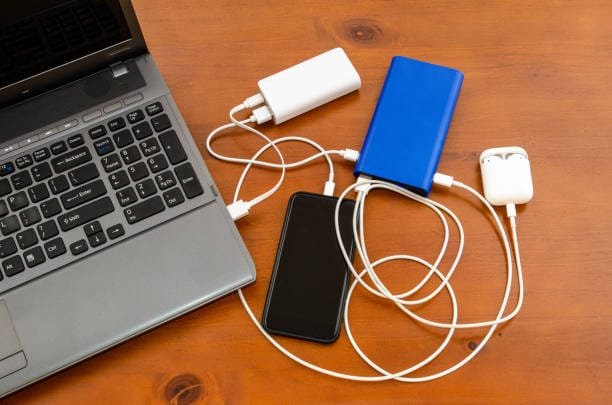
How to Show AirPod Battery: A Complete Guide
AirPods are more than just wireless earbuds; they have become an essential part of daily life for Apple users. From listening to music on the go to taking calls or working out, AirPods provide unmatched convenience. However, one of the most common questions AirPod users face is how to check their battery levels. You want to know when it’s time to charge them, so you don’t suddenly run out of battery in the middle of a conversation or playlist.
In this guide, we’ll walk you through how to check the battery of your AirPods, including detailed steps for viewing the battery on your iPhone, AirPod Pro, and even Mac. Whether you’re looking for the easiest method or want to check without opening your case, we’ve got you covered.
How to See How Much Battery AirPods Have
Checking the battery on your AirPods is easy, and Apple has provided multiple ways to ensure that you can keep track of their battery life throughout the day.
1. Open the AirPods Case Near Your iPhone
One of the simplest ways to check the battery level of your AirPods is by opening the case near your iPhone. As soon as you open the case, a pop-up notification will appear on your iPhone screen, displaying the battery percentage of both your AirPods and the charging case. This method gives you an instant and accurate reading of your AirPods’ battery life.
2. Use the Battery Widget on Your iPhone
If you prefer having quick access to your AirPods’ battery information at any time, you can add the Battery widget to your iPhone’s Home screen. Here’s how:
- Swipe Right on the Home Screen: On your iPhone, swipe right from the Home screen to open the “Today View.”
- Add the Battery Widget: Scroll down to the bottom and tap on the “Edit” button. Look for the “Batteries” widget and tap the plus sign to add it.
- View the Battery Percentage: Once added, you’ll be able to see the battery status of your AirPods and any other connected devices, such as your iPhone and Apple Watch, right on the “Today View” screen.
3. Ask Siri to Check for You
For those moments when you want to check your AirPods’ battery without lifting a finger, simply ask Siri. Just say, “Hey Siri, what’s the battery percentage of my AirPods?” Siri will provide you with an immediate response, including the battery levels of both the left and right AirPods, as well as the case.
How to See AirPod Pro Battery
If you have AirPods Pro, you can check your battery level using the same methods. However, with the AirPods Pro, you have the added benefit of more precise controls and features.
1. Open the AirPods Pro Case Near Your iPhone
Much like standard AirPods, when you open the case near your iPhone, you will immediately see a pop-up showing the battery percentage of both your AirPods Pro and the case. This is by far the easiest and quickest way to check your AirPods Pro battery.
2. Use the Battery Widget
To make things even easier, the Battery widget on your iPhone can show the battery status of your AirPods Pro without you needing to open the case. Simply swipe right to access the “Today View” on your iPhone and check the widget for up-to-date battery information.
3. Ask Siri for Help
Siri can also tell you the battery percentage of your AirPods Pro. Just ask, “Hey Siri, what’s the battery percentage of my AirPods Pro?” and Siri will respond with the information you need.
How to See AirPod Battery Percentage
Knowing your AirPods battery percentage is vital, especially when you rely on them throughout the day. Apple has made it easy to check the percentage in a few simple steps.
1. Use the Pop-Up Feature
The pop-up feature that appears when you open the AirPods case near your iPhone is the most common method for checking battery levels. It will show you the battery percentage for both the left and right AirPods and the charging case.
2. Use the Control Center
On an iPhone with Face ID, you can also check the battery status of your AirPods from the Control Center:
- Open the Control Center: Swipe down from the top-right corner of the screen.
- Find the Battery Status: The battery icon will show the battery percentage for your AirPods, alongside the battery level of your iPhone.
3. View Battery Status Using the Widget
Another easy way to check your AirPods’ battery percentage is by using the Battery widget on your iPhone. You can add it to your Home screen for instant access, allowing you to see your AirPods’ battery status without needing to open the case.
How to Show AirPod Battery on iPhone
Sometimes, you may want a more consistent way to monitor your AirPods’ battery levels throughout the day. Here’s how to ensure you always have the battery status at your fingertips:
1. Add the Battery Widget
As mentioned earlier, adding the Battery widget to your Home screen is a quick way to always know the battery percentage of your AirPods:
- Swipe Right on the Home Screen: Access the “Today View” by swiping right.
- Tap “Edit”: At the bottom, tap “Edit,” then find and add the “Batteries” widget.
- Check Battery Status: The widget will now display your AirPods’ battery status along with your iPhone’s.
2. Use Control Center for Quick Access
You can quickly check your AirPods battery without even unlocking your phone:
- Access Control Center: On iPhones with Face ID, swipe down from the top-right of the screen to open the Control Center.
- Check Battery Levels: The battery icon will show the percentage for both your iPhone and your AirPods.
How to See Your AirPod Battery on Mac
If you want to check the battery on your AirPods using your Mac, you can follow these steps:
- Ensure Your AirPods Are Connected: Make sure your AirPods are connected to your Mac via Bluetooth.
- Click the Bluetooth Icon: In the top menu bar, click on the Bluetooth icon to see the list of connected devices.
- View Battery Levels: Hover over the AirPods in the list, and the battery percentage will appear.
Conclusion
Knowing how to check your AirPods battery is important to ensure they stay charged throughout the day. Whether you use the pop-up notification feature, the Battery widget, or Siri, there are multiple ways to view your AirPods’ battery life. These methods make it easy to stay on top of your AirPods battery, ensuring they’re always ready for your next call, playlist, or workout.
With these simple and effective tips, you’ll never have to worry about your AirPods running out of battery unexpectedly. Enjoy seamless audio and communication with your AirPods, and keep them powered up for whatever life throws at you.

